• Skip to primary navigation
  • Skip to main content
  • Skip to primary sidebar

Excel Tutorials by Y. Acosta

Excel Tutorials + Tips

  • Excel Tutorials
  • Etsy Store
  • Other Resources
  • About Me
    • About Me
    • Contact Me
    • FREE Printable List of Top Excel Keyboard Shortcuts
  • FREE pdf of Top Excel Shortcuts!

How to Change Gridline Color in Excel (2 Easy Methods)

❤ Support Free Excel Training by Sharing -

We may be compensated for your purchase of any of the products featured on this page – it helps us keep the lights on :)

Did you know that you can change the color of gridlines in Excel? While the default gray gridlines work well for most purposes, changing their color can make your worksheets easier to read, organize, and navigate.

In this tutorial, you’ll learn two simple methods for changing gridline colors.

Table of contents

  • Method 1: Change the Default Gridline Color of a Worksheet
    • A Few Things to Know
  • Method 2: Use Borders for Custom Gridline Colors
  • Which Method Should You Use?
  • Watch the Full Video Tutorial

Method 1: Change the Default Gridline Color of a Worksheet

Excel has a built-in setting that lets you change the gridline color for an entire worksheet.

To do this:

  1. Open File > Options
  2. Select Advanced
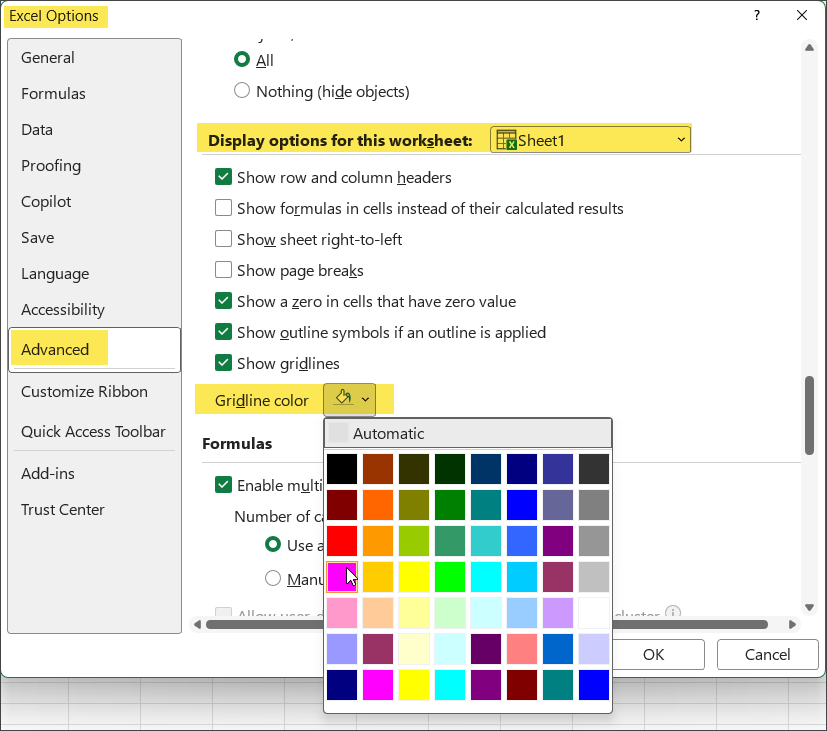
  3. Scroll to Display options for this worksheet
  4. Choose the worksheet that you want to update
  5. Select a new Gridline color
Image of"Display Options for this worksheet" in the Excel Options, Advanced tab.
“Display Options for this worksheet” section in the Excel Options, Advanced tab. Select Gridline Color.

This method is quick and easy if you want every gridline on the worksheet to use one of Excel’s built-in colors.

NOTE: Keep in mind that you’ll need to repeat these steps for each worksheet in your workbook if you want each one to use a different color.

A Few Things to Know

There are some limitations with this method:

  • You can only choose from Excel’s predefined colors
  • Custom RGB or HEX colors aren’t available
  • If you print the worksheet with gridlines enabled, they’ll print in the same color as your gridlines

TIP: For an even more color-organized workbook, consider changing the worksheet tab color to match the gridlines.

Method 2: Use Borders for Custom Gridline Colors

If you want more flexibility, using the Borders formatting feature is a great alternative.

Unlike the first method, Borders allow you to:

  • Use custom RGB or HEX colors
  • Match your company’s brand colors
  • Color only part of a worksheet instead of the entire sheet

To use this approach:

  1. Select the cells you want to format (or the entire worksheet)
  2. Go to the Home tab
  3. Open the Borders drop-down menu
  4. Choose Line Color
  5. Select a built-in color or click More Colors to enter a custom RGB or HEX value
  6. From the Borders drop-down, click on All Borders to apply the new color to your border’s gridlines

This method gives you more control over how your worksheet looks and works especially well for dashboards, reports, planners, and other formatted spreadsheets.

Which Method Should You Use?

If you only want to change the appearance of an entire worksheet, the built-in gridline color setting in your Excel Options is the fastest solution.

If you need custom colors or want to highlight only specific sections of a worksheet, using the Borders feature is the better choice.

Watch the Full Video Tutorial

Want to see both methods in action? Watch the step-by-step video tutorial to follow along and see exactly how each technique works.

Do you have a favorite method? Let me know in the comments!
Related Articles:

  • How to Change the Gridline Colors in Excel - featured image, thumbnail
    Change the Gridline Color in Excel…
  • Change Measurement Unit in Excel (feat. image)
    How to Change Measurement Type in Excel…
  • Phone Number Formatting in Excel - Tutorial Feat. Image
    How to Format Phone Numbers in Excel (with…

❤ Support Free Excel Training by Sharing -

blank

About Y. Acosta

Yil's (pronounced like "Jill") passion for Excel spreadsheets can be traced back to her days in marketing, where she spent significant time working on analytics. As a content creator, she now specializes in Excel spreadsheet tutorials. Make sure to visit the About page to learn more.

Reader Interactions

Leave a Reply Cancel reply

Your email address will not be published. Required fields are marked *

Primary Sidebar

Follow us:

Latest Tutorial:

How to Change the Color of Gridlines in Excel - website featured image

Click Here for More Excel Tutorials!!!

Image-button for Invoice Template for Etsy

Copyright © 2026

  • Home
  • Excel Tutorials
  • Resources
  • About Me
  • Privacy Policy & Terms of Use
  • Disclaimer
  • Advertiser Disclosure
  • Contact Me
  • FREE Printable List of Top Excel Keyboard Shortcuts
We use cookies on our website to give you the most relevant experience by remembering your preferences and repeat visits. By clicking “Accept”, you consent to the use of ALL the cookies.
Do not sell my personal information.
SettingsAccept
Privacy & Cookies Policy

Privacy Overview

This website uses cookies to improve your experience while you navigate through the website. Out of these cookies, the cookies that are categorized as necessary are stored on your browser as they are essential for the working of basic functionalities of the website. We also use third-party cookies that help us analyze and understand how you use this website. These cookies will be stored in your browser only with your consent. You also have the option to opt-out of these cookies. But opting out of some of these cookies may have an effect on your browsing experience.
Necessary
Always Enabled
Necessary cookies are absolutely essential for the website to function properly. This category only includes cookies that ensures basic functionalities and security features of the website. These cookies do not store any personal information.
Non-necessary
Any cookies that may not be particularly necessary for the website to function and is used specifically to collect user personal data via analytics, ads, other embedded contents are termed as non-necessary cookies. It is mandatory to procure user consent prior to running these cookies on your website.
SAVE & ACCEPT