• Skip to primary navigation
  • Skip to main content
  • Skip to primary sidebar

Excel Tutorials by Y. Acosta

Excel Tutorials + Tips

  • Excel Tutorials
  • Etsy Store
  • Other Resources
  • About Me
    • About Me
    • Contact Me
    • FREE Printable List of Top Excel Keyboard Shortcuts
  • FREE pdf of Top Excel Shortcuts!

How to Change Measurement Type in Excel (with pictures + video!)

❤ Support Free Excel Training by Sharing -

We may be compensated for your purchase of any of the products featured on this page – it helps us keep the lights on :)

Depending on what you’re working on or the type of unit of measurement you feel comfortable with, you may need to change the measurement type in Excel.

For example, change from centimeters to inches or vice versa. You can also choose millimeters.

Changing the unit of measurement will affect the rulers and row/column size adjustments displayed in Page Layout View.
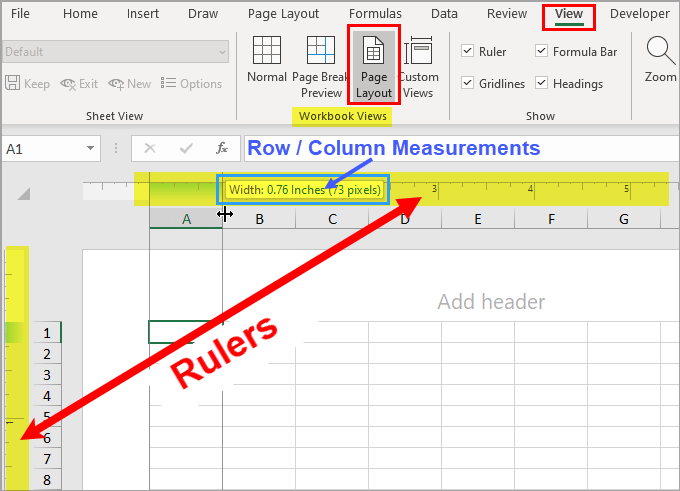
Measurement Unit in Excel Examples (image)
Measurement Unit in Excel Examples

What is Page Layout View in Excel?

Available in Excel 2007 and newer, the Page Layout View is an Excel Workbook view option that lets you see:

  • Rulers in your worksheet that use common measurement units
  • Row and column size adjustments in common measurements units
  • A clear outline of where your page begins and ends and
  • How your Headers and Footers look as you edit them

The measurements units available are:

  • Inches
  • Centimeters
  • Millimeters

Your default unit of measurement is set based on your operating system’s regional settings.

You’ll find Page Layout Workbook View in the View tab of your Excel Ribbon, in the Workbook Views section.
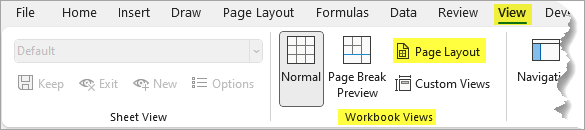
Page Layout View in the View Tab of Excel Ribbon
Find the Page Layout Workbook View in the Excel Ribbon / in the View tab / in the Workbook Views Section

How to Change the Unit of Measurement in Excel

WATCH: Change the Unit of Measurement in Excel’s Page Layout View (video tutorial)

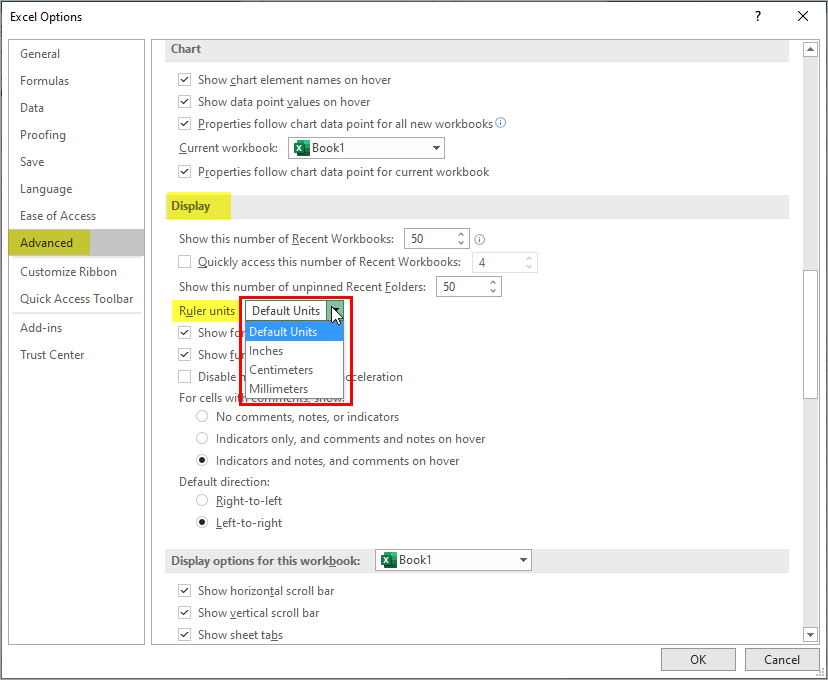
You can change the type of measurement from your Excel Options.

FYI: you can access your Excel Options from the File menu on your spreadsheet.

To change the measurement unit displayed:

  1. Go to the Advanced section of your Excel Options (from the tabs on the left)

  2. Scroll to the Display section

  3. In “Ruler Units” drop-down, select the type of measurement you’d like

  4. Click OK when done

How to Change Measurement Type in Excel Options (image)
How to Change Measurement Type in Excel Options

Need to convert measurement units in Excel? Make sure to watch our tutorial on how to use the CONVERT function.


FYI, this was created using the desktop version of Excel in Microsoft 365.


Related Articles:

  • How to Make Graph Paper in Excel - Tutorial
    How to Make Graph Paper in Excel (+ video…
  • CONVERT Formula in Excel - Tutorial
    CONVERT Function: How to do Unit…
  • How to Add a Printable Background Picture in Excel - Tutorial
    Add a Printable Background Picture in…

❤ Support Free Excel Training by Sharing -

blank

About Y. Acosta

Yil's (pronounced like "Jill") passion for Excel spreadsheets can be traced back to her days in marketing, where she spent significant time working on analytics. As a content creator, she now specializes in Excel spreadsheet tutorials. Make sure to visit the About page to learn more.

Reader Interactions

Comments

  1. blankปั้มไลค์ says

    at

    Like!! Really appreciate you sharing this blog post.Really thank you! Keep writing.

    Reply
    • blankY. Acosta says

      at

      Thank you so much! I’m glad you liked this 🙂

      Reply

Leave a Reply Cancel reply

Your email address will not be published. Required fields are marked *

Primary Sidebar

Follow us:

Latest Tutorial:

Featured image for How to Use Find & Replace to Remove Wildcard Characters in Excel article

Click Here for More Excel Tutorials!!!

Get Your FREE pdf of Top Excel Keyboard Shortcuts!

* indicates required

blank

Image-button for Invoice Template for Etsy

Copyright © 2026

  • Home
  • Excel Tutorials
  • Resources
  • About Me
  • Privacy Policy & Terms of Use
  • Disclaimer
  • Advertiser Disclosure
  • Contact Me
  • FREE Printable List of Top Excel Keyboard Shortcuts
We use cookies on our website to give you the most relevant experience by remembering your preferences and repeat visits. By clicking “Accept”, you consent to the use of ALL the cookies.
Do not sell my personal information.
SettingsAccept
Privacy & Cookies Policy

Privacy Overview

This website uses cookies to improve your experience while you navigate through the website. Out of these cookies, the cookies that are categorized as necessary are stored on your browser as they are essential for the working of basic functionalities of the website. We also use third-party cookies that help us analyze and understand how you use this website. These cookies will be stored in your browser only with your consent. You also have the option to opt-out of these cookies. But opting out of some of these cookies may have an effect on your browsing experience.
Necessary
Always Enabled
Necessary cookies are absolutely essential for the website to function properly. This category only includes cookies that ensures basic functionalities and security features of the website. These cookies do not store any personal information.
Non-necessary
Any cookies that may not be particularly necessary for the website to function and is used specifically to collect user personal data via analytics, ads, other embedded contents are termed as non-necessary cookies. It is mandatory to procure user consent prior to running these cookies on your website.
SAVE & ACCEPT