We may be compensated for your purchase of any of the products featured on this page – it helps us keep the lights on :)
Did you know that you can change the color of gridlines in Excel? While the default gray gridlines work well for most purposes, changing their color can make your worksheets easier to read, organize, and navigate.
In this tutorial, you’ll learn two simple methods for changing gridline colors.
Table of contents
Method 1: Change the Default Gridline Color of a Worksheet
Excel has a built-in setting that lets you change the gridline color for an entire worksheet.
To do this:
- Open File > Options
- Select Advanced
- Scroll to Display options for this worksheet
- Choose the worksheet that you want to update
- Select a new Gridline color
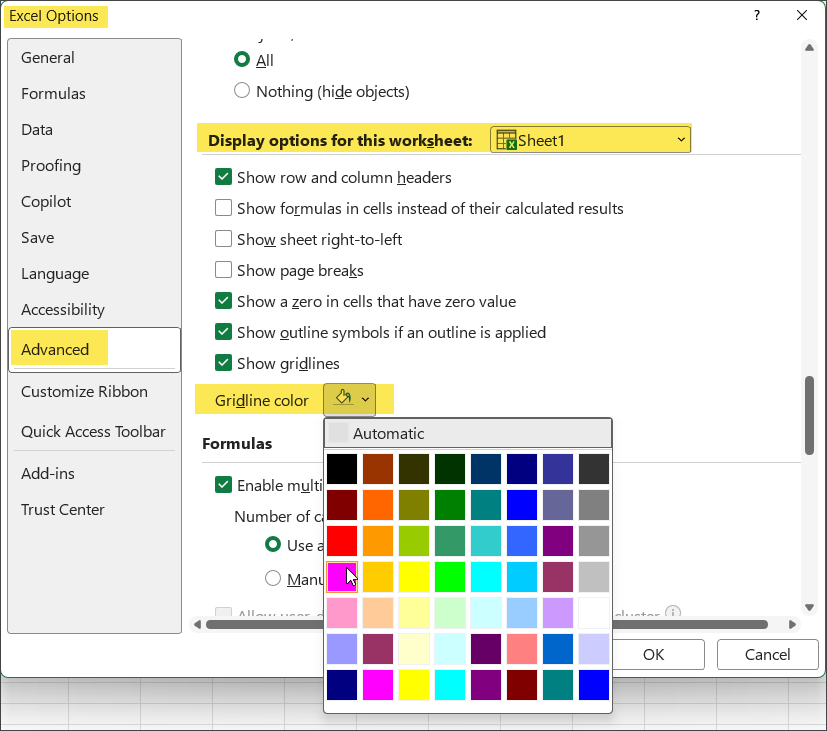
This method is quick and easy if you want every gridline on the worksheet to use one of Excel’s built-in colors.
NOTE: Keep in mind that you’ll need to repeat these steps for each worksheet in your workbook if you want each one to use a different color.
A Few Things to Know
There are some limitations with this method:
- You can only choose from Excel’s predefined colors
- Custom RGB or HEX colors aren’t available
- If you print the worksheet with gridlines enabled, they’ll print in the same color as your gridlines
TIP: For an even more color-organized workbook, consider changing the worksheet tab color to match the gridlines.
Method 2: Use Borders for Custom Gridline Colors
If you want more flexibility, using the Borders formatting feature is a great alternative.
Unlike the first method, Borders allow you to:
- Use custom RGB or HEX colors
- Match your company’s brand colors
- Color only part of a worksheet instead of the entire sheet
To use this approach:
- Select the cells you want to format (or the entire worksheet)
- Go to the Home tab
- Open the Borders drop-down menu
- Choose Line Color
- Select a built-in color or click More Colors to enter a custom RGB or HEX value
- From the Borders drop-down, click on All Borders to apply the new color to your border’s gridlines
This method gives you more control over how your worksheet looks and works especially well for dashboards, reports, planners, and other formatted spreadsheets.
Which Method Should You Use?
If you only want to change the appearance of an entire worksheet, the built-in gridline color setting in your Excel Options is the fastest solution.
If you need custom colors or want to highlight only specific sections of a worksheet, using the Borders feature is the better choice.
Watch the Full Video Tutorial
Want to see both methods in action? Watch the step-by-step video tutorial to follow along and see exactly how each technique works.
Do you have a favorite method? Let me know in the comments!

Leave a Reply